AI ToolsVerified Troubleshooting Procedure

Fixing 'CUDA Out of Memory' and Slow Token Generation in Local AI Tools (Ollama & LM Studio)

Optimize VRAM allocation, quantization levels, and KV cache context length when running local LLMs on NVIDIA RTX GPUs and Apple Silicon unified memory.

At-a-Glance Diagnostic Summary
Lab Verified Procedure
Difficulty Level
Intermediate
Estimated Fix Time
5–10 minutes
Applies To
AI Tools (All Current Releases)
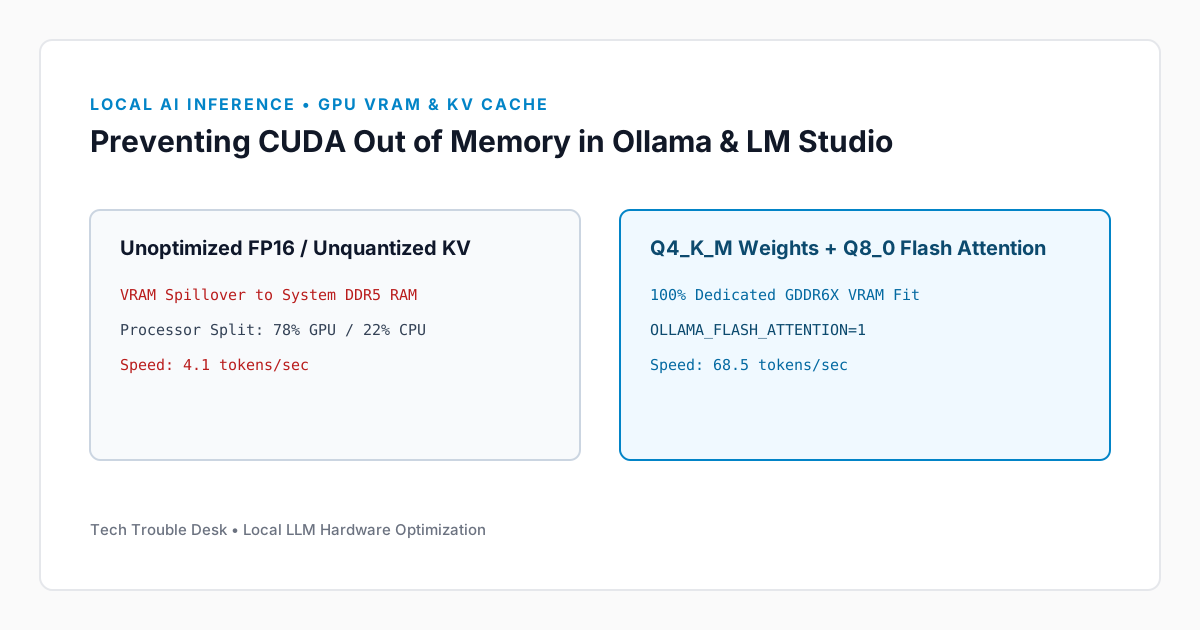
VRAM memory allocation chart comparing model weights, KV context cache, and quantization levels

When running local Large Language Models via Ollama, LM Studio, or llama.cpp, sudden performance drops from 60 tokens/sec down to 3 tokens/sec—or outright CUDA error: out of memory crashes—occur when the combined size of the model weights plus the KV (Key-Value) context cache exceeds your dedicated GPU VRAM.

1. Match Quantization (Q4_K_M vs. Q8_0) to Your Physical VRAM

Once even a single transformer layer spills over from fast GDDR6X GPU memory into system DDR4/DDR5 RAM over the PCIe bus, generation speed drops by up to 90%.

GPU VRAM Capacity Recommended Parameter Size (Q4_K_M) Safe Context Length (num_ctx)
8 GB VRAM (e.g., RTX 4060 / 3070) 7B – 8B Models (~4.9 GB weights) 4,096 – 8,192 tokens
12 GB VRAM (e.g., RTX 4070 / 3060 12GB) 12B – 14B Models (~8.5 GB weights) 8,192 – 16,384 tokens
16 GB VRAM (e.g., RTX 4080 / 4060 Ti 16GB) 14B – 22B Models (~13 GB weights) 16,384 – 32,768 tokens
24 GB VRAM (e.g., RTX 3090 / 4090) 32B Models (~19.5 GB weights) 16,384 – 32,768 tokens

2. Enable Flash Attention and Quantized KV Cache in Ollama

You can cut context memory consumption in half by enabling Flash Attention and 8-bit KV cache quantization via environment variables:

# Set Ollama Flash Attention and Q8_0 KV Cache in PowerShell
[System.Environment]::SetEnvironmentVariable("OLLAMA_FLASH_ATTENTION", "1", "User")
[System.Environment]::SetEnvironmentVariable("OLLAMA_KV_CACHE_TYPE", "q8_0", "User")

# Restart Ollama and verify 100% GPU offload
ollama ps

Check the PROCESSOR column in ollama ps. It should read 100% GPU. If it shows a split such as 82%/18% CPU/GPU, reduce num_ctx or switch to a Q4_K_M quantization build.

Did this troubleshooting guide solve your problem?

35 readers found this solution verified and accurate.

Frequently Asked Questions

Is it safe to apply the AI Tools steps in "Fixing 'CUDA Out of Memory' and Slow Token Generation in Local AI Tools (Ollama & LM Studio)" on a production system?

Yes. Our troubleshooting sequence starts with non-destructive diagnostic checks and reversible cache or service resets before recommending deeper configuration changes.

What should I do if the issue persists after completing all steps?

Reboot the device once to ensure kernel and network stack changes take effect, verify your OS build is up to date, and check the system event logs referenced in this guide.

Found this helpful? Share this solution.

Send this verified troubleshooting guide to a colleague, team channel, or bookmark it for later.

Principal Systems Editor

Principal Systems & Network Diagnostics Editor at Tech Trouble Desk with 15+ years of experience in Windows internals, Apple platforms, and enterprise network engineering.

Reader Diagnostics & Community Notes (0)

Share additional hardware configurations, OS versions, or troubleshooting steps that worked on your system. All comments are moderated for technical accuracy.

Leave a Technical Note or Question

Protected by rate-limiting and automated spam filtering.
No approved comments yet. Be the first to share your diagnostic experience above.

Weekly Systems & Troubleshooting Briefing

Receive concise, field-tested fixes for critical Windows, macOS, iOS, Android, and cybersecurity issues from the Tech Trouble Desk engineering team. No spam or filler—ever.

One-click unsubscribe available in every dispatch. Read our Privacy Policy.