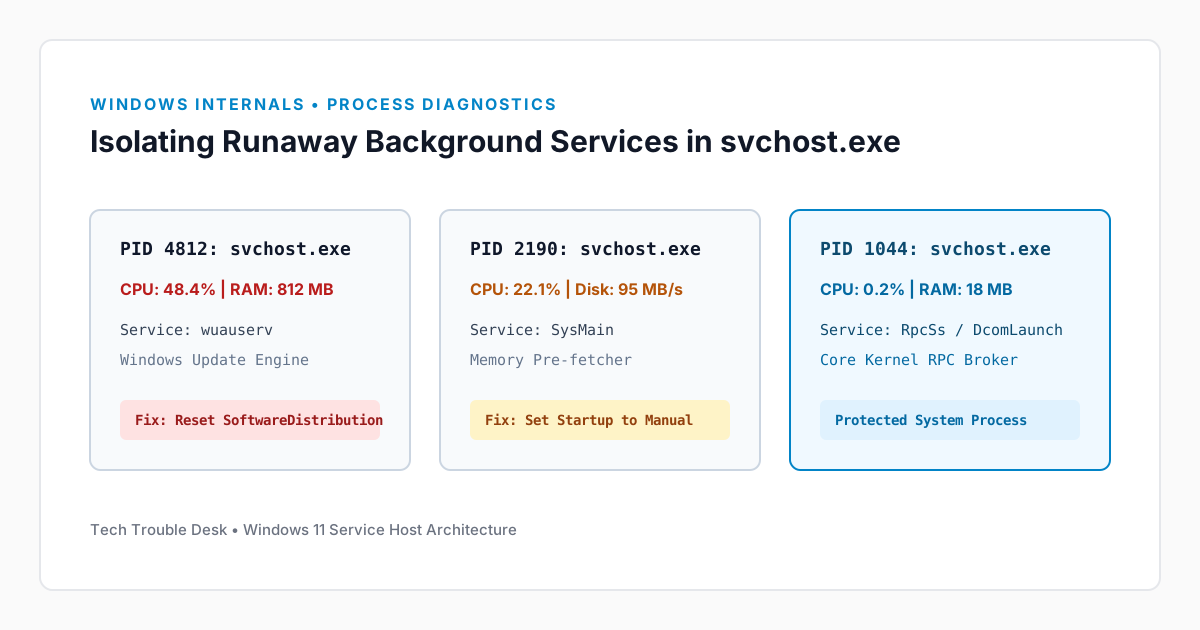
svchost.exe (Service Host) is a legitimate core Windows system binary located in C:\Windows\System32\svchost.exe. Instead of running every Windows background service in a single monolithic process where one crash could bring down the entire OS, Windows isolates services into separate svchost.exe instances. However, when a specific service—such as Windows Update, SysMain, or Diagnostic Policy Service—enters an infinite loop, it manifests in Task Manager as a generic Service Host consuming 30% to 100% CPU.
Never Delete or Force-Kill Random svchost.exe Binaries
Terminating critical Service Host processes (such as Remote Procedure Call or DCOM Server Process Launcher) will immediately trigger a Windows Blue Screen of Death (BSOD). Always inspect the underlying service name first.
1. Pinpoint the Exact Culprit Service by PID
Modern versions of Windows 11 assign most services their own dedicated process ID (PID) on systems with more than 3.5 GB of RAM, making isolation straightforward.
Step 1: List Services Mapped to High-CPU Process IDs
Open PowerShell (Admin) and run the following command to list the top CPU-consuming svchost instances along with the exact Windows services hosted inside them:
Get-Process svchost | Sort-Object CPU -Descending | Select-Object -First 5 Id, ProcessName, CPU, @{Name="MemoryMB";Expression={[math]::Round($_.WorkingSet64 / 1MB, 1)}}, @{Name="Services";Expression={(Get-CimInstance Win32_Service -Filter "ProcessId=$($_.Id)").Name -join ", "}} | Format-Table -AutoSize
2. Remediate the Three Most Common Runaway Services
Once the Services column reveals the internal service name, match it against the targeted remediation procedures below:
| Service Name |
Display Name |
Typical Symptom |
Safe Remediation |
wuauserv |
Windows Update |
Sustained 25–50% CPU & high disk I/O after patch Tuesday |
Clear SoftwareDistribution\Download cache and restart service |
SysMain |
SysMain (Superfetch) |
High memory compression and disk reads on older SSDs |
Restart service or set startup type to Manual if causing stutter |
DPS / WdiSystemHost |
Diagnostic Policy Service |
High CPU spikes during network or hardware fault logging |
Stop service, clear C:\Windows\System32\sru log files, and restart |
Step 2: Reset Corrupted Windows Update Component Cache
If wuauserv or bits is stuck scanning corrupted update manifests, run these commands in an elevated PowerShell prompt:
Stop-Service -Name wuauserv, bits, cryptSvc -Force
Remove-Item -Path "$env:SystemRoot\SoftwareDistribution\Download\*" -Recurse -Force -ErrorAction SilentlyContinue
Start-Service -Name cryptSvc, bits, wuauserv
3. Verify Binary Path to Rule Out Malware Masquerading
Malware occasionally names its executable svchost.exe and places it in C:\Users\Public or AppData. Run this verification query to ensure every running svchost binary resides in C:\Windows\System32 or C:\Windows\SysWOW64:
Get-Process svchost | Where-Object { $_.Path -notmatch "Windows\\(System32|SysWOW64)\\svchost\.exe$" } | Select-Object Id, Path
If this command returns zero rows, every active Service Host process on your machine is an authentic Microsoft system binary.