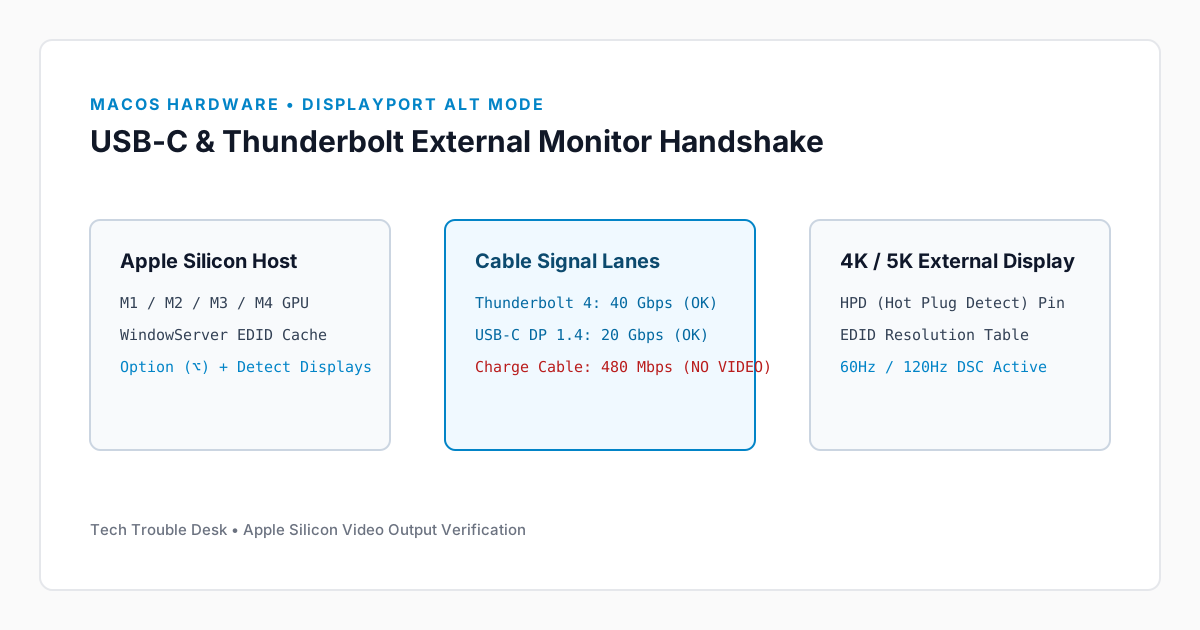
Apple Silicon Macs (M1, M2, M3, and M4 series) negotiate external video output using DisplayPort Alt Mode or Thunderbolt tunneling over USB-C. A frequent failure mode occurs when USB Power Delivery (charging) succeeds over the cable, leading users to assume the cable is functional, while the high-speed DisplayPort handshake silently fails or macOS stores a corrupted display EDID profile.
Check Apple Silicon Native Display Limits First
Base-model M1 and M2 MacBooks support only one external display natively over Thunderbolt. M3 MacBook Air supports two external displays only when the laptop lid is closed (clamshell mode). M1/M2/M3/M4 Pro and Max chips support multiple external displays simultaneously.
1. Trigger Hidden 'Detect Displays' in macOS System Settings
By default, macOS hides the manual display re-enumeration button until you hold the Option modifier key.
Step 1: Force Display Bus Re-Scan
- Open System Settings → Displays.
- Press and hold the Option (⌥) key on your keyboard.
- Notice the Night Shift button at the bottom right changes to Detect Displays.
- Click Detect Displays while keeping the monitor powered on and set to the matching input source (USB-C or DisplayPort).
2. Distinguish Charging-Only USB-C Cables from Video-Capable Cables
The white braided USB-C charge cable included in the box with MacBooks supports USB 2.0 data speeds (480 Mbps) and Power Delivery only—it physically lacks the SuperSpeed differential pairs required for video output.
| Cable Type |
Max Bandwidth |
Supports 4K 60Hz+ Video? |
| Apple USB-C Charge Cable (In-Box) |
480 Mbps (USB 2.0) |
No (Charging & USB 2.0 data only) |
| USB-C 3.2 Gen 2 with DP Alt Mode |
10 Gbps / 20 Gbps |
Yes (Up to 4K 60Hz / 144Hz with DSC) |
| Thunderbolt 3 / Thunderbolt 4 Cable |
40 Gbps |
Yes (Dual 4K 60Hz or Single 6K/8K) |
3. Reset Corrupted macOS WindowServer Display Preferences
If your monitor previously worked and stopped appearing after a resolution change or macOS update, reset the stored display configuration property lists (`windowserver.displays.plist`) so macOS negotiates a clean EDID handshake.
Step 2: Remove Cached Display Configuration Files
Disconnect the external monitor from your Mac, open Terminal, and run:
# Back up and clear system and user display configuration caches
sudo mv /Library/Preferences/com.apple.windowserver.displays.plist /Library/Preferences/com.apple.windowserver.displays.plist.bak 2>/dev/null
rm -f ~/Library/Preferences/ByHost/com.apple.windowserver.displays.*.plist
Reboot your Mac completely, log in to your desktop, and reconnect the USB-C or Thunderbolt display cable directly to a host port on the Mac (bypassing any intermediate multiport hubs during testing).